Finding the libs folder in Android Studio

You can add any external libraries required by your Android project in a libs/ folder.
Usually, a library in .jar format needs to be included in the libs/ folder.
When you create a mobile app project using Android Studio, an empty libs/ folder was generated for your project.
But to see the folder, you need to change the project structure from Android to Project first.
See the example below:
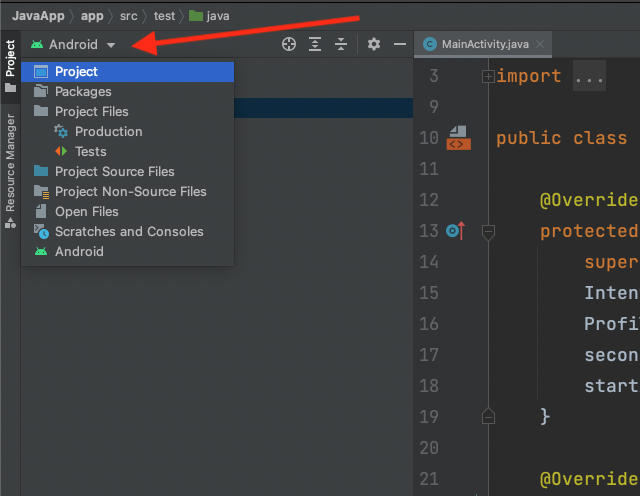
Once you change the structure view, you should be able to find the libs/ folder inside the app/ module as shown below:
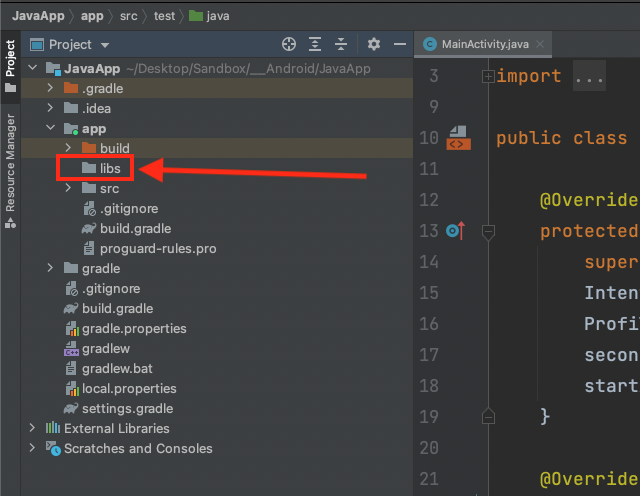
When you don’t see the libs/ folder inside the app/ module, then you may have deleted the folder accidentally.
You need to create a new libs/ folder by right-clicking on the app/ module, then select New > Directory from the context menu. Name the new directory as libs.
Now that you have the libs/ folder, you can move the .jar libraries that your project requires to that folder.
For example, here we have added Retrofit and Glide jar files to the libs/ folder
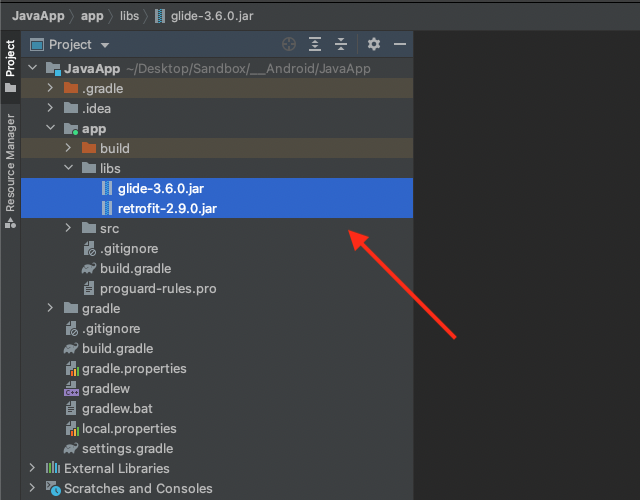
Once you add the jar files, open the build.gradle file inside the app/ module and add the jar files reference in the dependencies scope.
See the highlighted example below:
dependencies {
    implementation 'androidx.appcompat:appcompat:1.4.1'
    implementation 'com.google.android.material:material:1.6.0'
    implementation 'androidx.constraintlayout:constraintlayout:2.1.3'
    implementation files('libs/retrofit-2.9.0.jar')
    implementation files('libs/glide-3.6.0.jar')
}
Finally, you need to sync your project and let Gradle get the dependencies.
Once Gradle sync is finished, you can import the jar libraries in your source code:
import com.bumptech.glide.Glide;
import retrofit2.Retrofit;

public class MainActivity extends AppCompatActivity {
    // ...
}
Alternatively, you can also select the jar files, then right-click on one of them to bring up the context menu.
Select the Add As Library.. option as shown below:
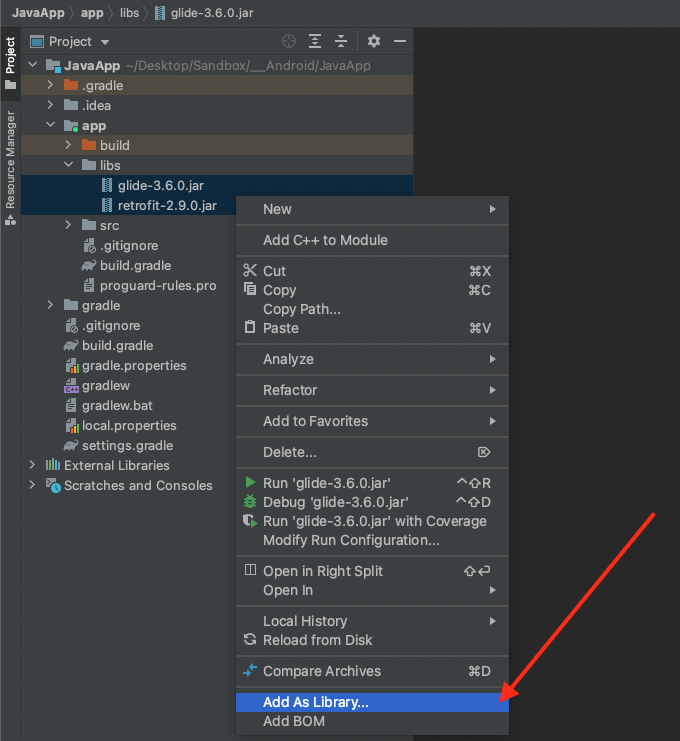
The Add As Library.. option will add the jar files as dependencies to your build.gradle file and sync it automatically.
Now you’ve learned how to find the libs/ folder in Android Studio.
You’ve also seen how you can add the jar files as dependencies in your build.gradle file. Good work! 👍